
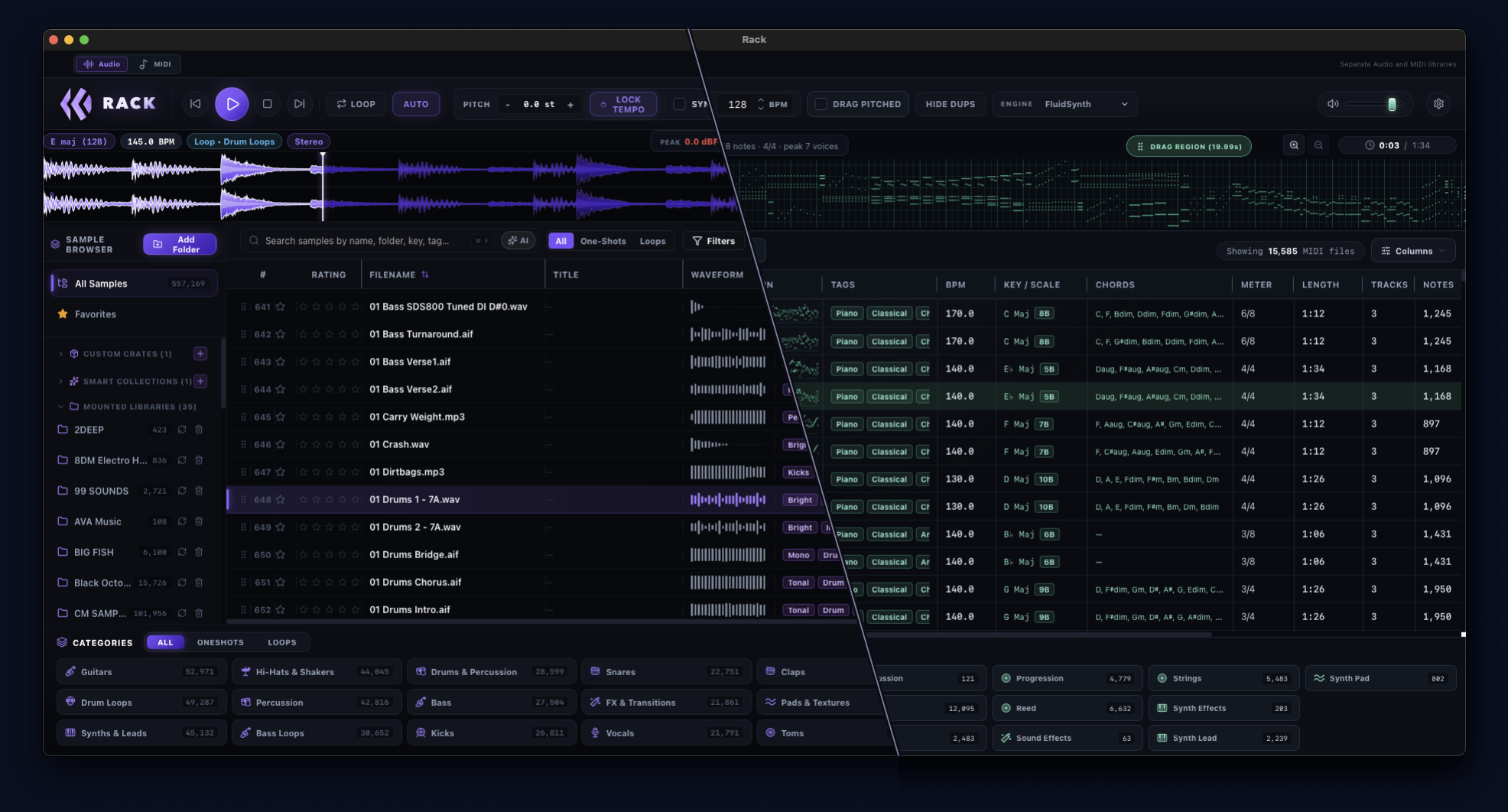
Audio and MIDI library browser · Version 2.0.2 · October 2026
RACK helps you find, preview, organize, and move sounds and MIDI ideas into a project. Its Audio and MIDI modes have separate indexed libraries, but share a familiar search, preview, and organization workflow. This edition describes the macOS app and the controls visible in version 2.0.2.
The figures were captured from the running app in October 2026. Audio and MIDI demonstrations use original example files where possible; interface values and available playback engines can differ with your library and Mac.
Start here
What RACK does
Audio mode indexes audio folders and shows waveform previews, detected musical and acoustic information, tags, categories, ratings, and duplicates. You can audition a sound, select a portion of its waveform, alter preview pitch or tempo, apply audition effects, and drag or export audio.
MIDI mode indexes MIDI files separately. It shows a piano-roll preview plus metadata such as instruments, pattern, key, chords, meter, note range, tracks, and note count. You can audition through a playback engine, transpose or sync the preview, select a region, and drag MIDI out.
Indexing creates RACK’s searchable record of a folder. Removing a mounted folder from RACK removes its indexed entries; it does not delete the original files. Audio crates and MIDI crates are separate.
First launch and setup
- Open RACK from Applications. On first launch, the Set up audio search screen may ask to download and verify support files for audio search. Choose Download and set up Rack and wait for RACK to open. If the connection fails, return to that screen and retry when online.
- Choose Audio or MIDI at the top left. The mode switch preserves separate libraries and gives each mode its own accent color.
- Click Add Folder in that mode and choose a folder containing the relevant files. The Audio browser indexes supported audio; the MIDI browser indexes valid MIDI and ignores audio files. Wait for the scan to finish.
- Click a row to select it. With AUTO enabled, selecting a row starts its preview. Use the large play control, the row play button, or Space to pause or resume. The preview band above the table shows the waveform or piano roll.
- Search, filter, or choose a category. To use a result in another app, drag its row grip to Finder or a compatible music app. A selected preview region has a separate DRAG REGION control.
Tip: Begin with one small folder. It makes the first scan and the controls easier to understand. Add larger libraries after you are comfortable with the workflow.
The window at a glance
The top bar contains the mode switch and transport. The large preview band shows the selected item. The left sidebar contains libraries, Favorites, crates, and smart collections. Search, class buttons, filters, result count, and the Columns menu sit above the table. The category matrix at the bottom offers another way to narrow the view. Settings opens from the gear at the far right.
Audio mode: build and browse a library
Add, scan, and remove audio folders
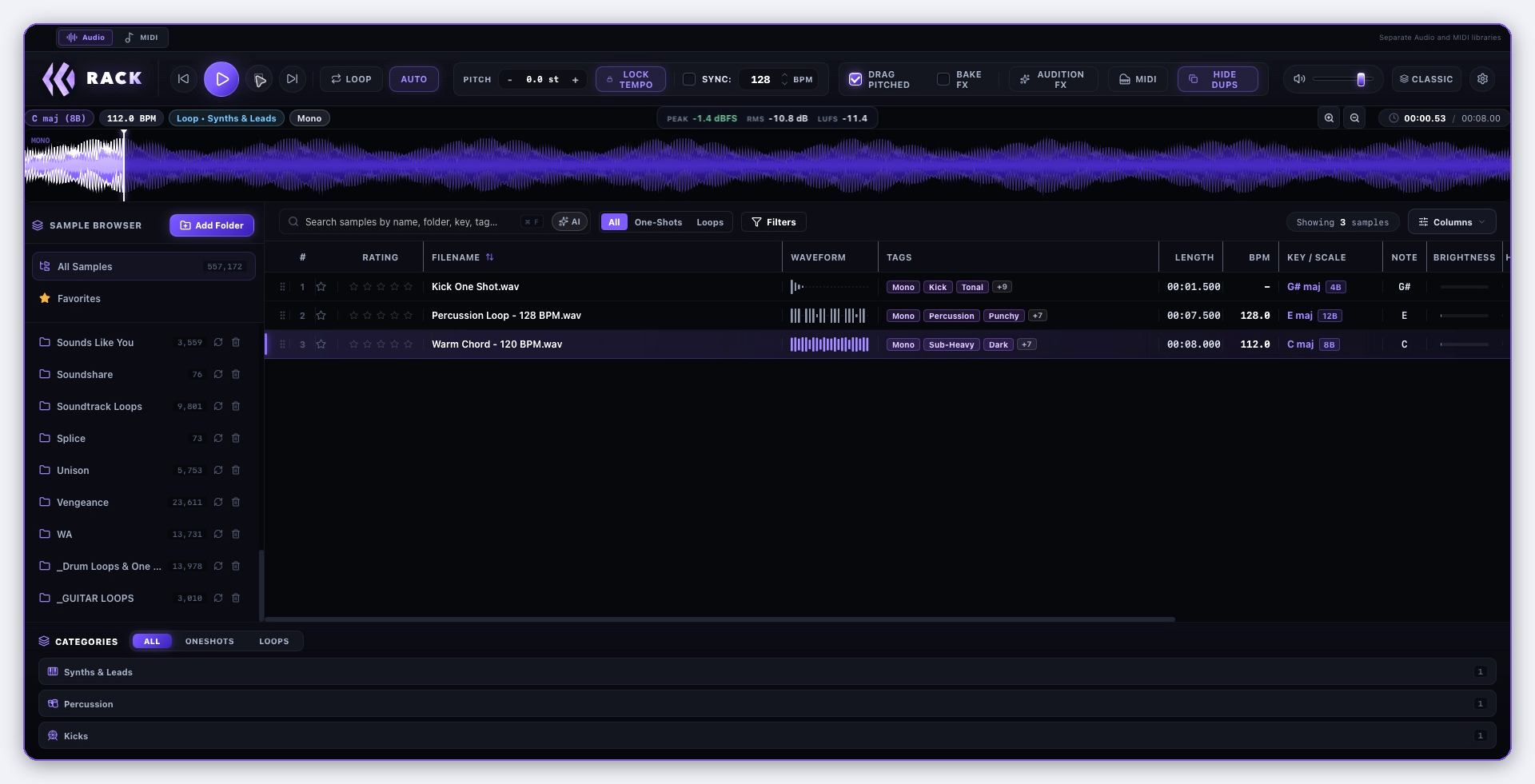
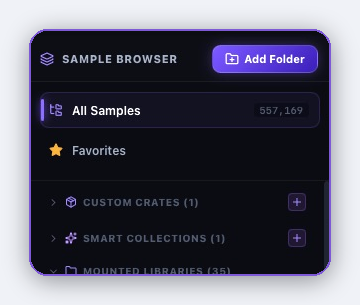
Click Add Folder in the Sample Browser sidebar and choose a folder. You can also drop an operating-system folder onto the Audio window. RACK mounts it, scans its files, and adds the results to the Audio index. A mounted library shows its name and count in the sidebar. Selecting it limits the table to that library; All Samples returns to the combined view.
Use the circular-arrow control beside a mounted library to rescan when files have been added or changed. Shift-click that control to force full re-analysis. The sidebar shows active and queued scan progress and provides a cancel control while scanning. A normal rescan is the first step when recently added files are missing; reserve full analysis for changed metadata or a damaged index.
The remove control beside a library removes that folder from RACK’s sidebar and index. It leaves the files on disk. This is useful when a volume is unavailable or a folder should no longer appear in search. Re-add the folder later to index it again.
Read and customize the Audio table
Each row is one indexed sound. Click a row to select it; use the row’s play control to audition without changing other filters. The star at the start of a row adds or removes a Favorite. The adjacent five-star control stores a rating; clicking the same rating again clears it. Command-click can add or remove rows from a multiple selection, and the selected-count action bar provides batch export.
The table can show Rating, Filename, Title, Waveform, Tags, Length, BPM, Key/Scale, Note, Brightness, Harmonicity, Class, Category, Folder, and Size. A dash means RACK has no value for that field. Click a column heading to sort, drag its divider to resize, and use Columns to show, hide, or reorder fields. Reset Defaults restores the standard arrangement. The filename remains available so a row can always be identified.
Tags are clickable: select one to filter to matching sounds; click it again to clear that tag filter. A duplicate-count badge beside a filename opens its copies. The waveform thumbnail is a quick shape preview, while the large band above the table offers precise selection.

Search, similarity, and advanced filters
Type in the search field to narrow the current Audio view by the terms shown in the library. Clear the field with its x button. The adjacent AI control switches to audio search that can use RACK’s downloaded audio model for sound descriptions. A phrase such as “warm analog sub” is more useful in this mode than a filename fragment. A result banner identifies an AI or similarity search and provides a clear action. If the model is unavailable, use ordinary text search and metadata filters.
Right-click one sound and choose Find Similar Sounds (AI) to rank other indexed sounds by acoustic similarity to it. This is a discovery tool: check the preview and metadata of a match before using it. It does not change the underlying files.
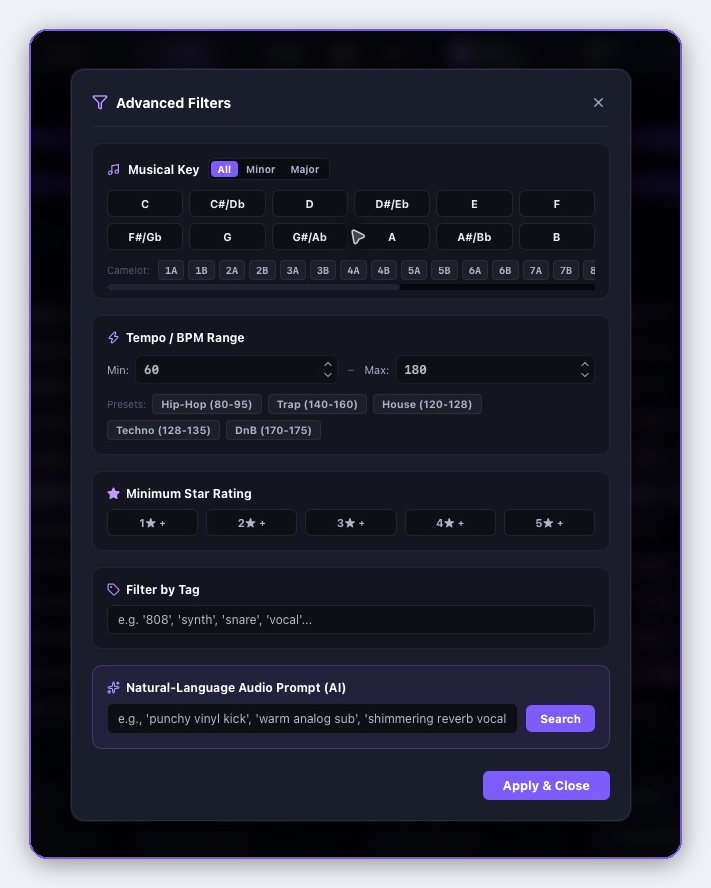
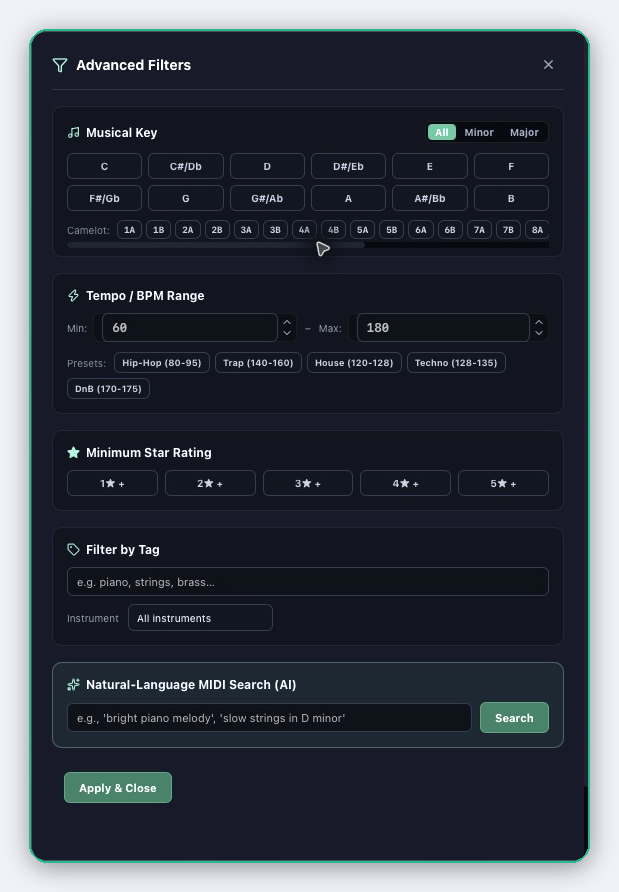
Open Filters for musical key and major/minor scale, Camelot notation, minimum and maximum BPM, tempo presets, a minimum star rating, and a tag. The same panel includes a natural-language Audio prompt. Active filters appear as chips above the results; remove one chip or choose Reset All to clear the set. Filters combine with the selected library, class, category, and search, so an empty result often means that more than one restriction is active.
Categories, classes, Favorites, crates, and smart collections
The bottom Categories matrix shows indexed categories and counts. Choose a card to filter; choose it again or use Clear Category to return. The All / Oneshots / Loops tabs restrict by sound class. More opens a searchable overflow list when there are more categories than fit in the matrix. The matching class controls above the table provide a quicker route when the matrix is out of view.
Favorites is a quick view of starred sounds. Custom Crates are lists you curate manually: create one with the plus button, name it, then drag selected sounds onto it or use Add to Crate in the right-click menu. Rename or delete the crate from the sidebar controls. Deleting a crate does not delete its sounds.
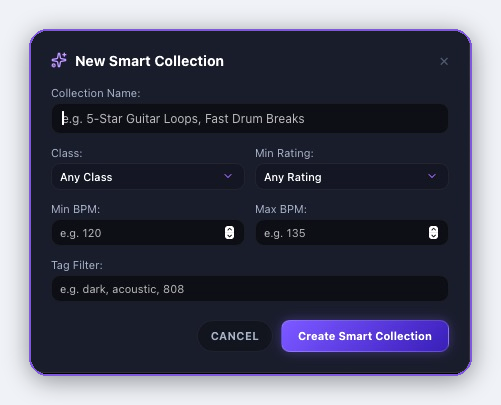
Smart Collections save rules and update their results as the library changes. Create one with the plus button and choose a name, class, minimum rating, BPM bounds, and tag filter. Use a smart collection for recurring searches such as highly rated loops in a tempo range. Its rules select matching indexed sounds; it is not a copy of the files.

Audio mode: audition, shape, and export
Transport and playback
The Audio transport provides Previous, Play/Pause, Stop, Next, LOOP, AUTO, Pitch, LOCK TEMPO, SYNC/BPM, DRAG PITCHED, BAKE FX, Audition FX, MIDI keyboard audition, duplicate visibility, volume, and Settings. AUTO starts a preview when you select a row; turn it off when you want to browse silently. LOOP repeats the current item or selected region. Stop leaves the playhead at its current position; seeking while stopped moves the playhead without starting playback. Play resumes there unless a selected region takes priority.
Use the volume slider or speaker icon for preview loudness. Previous and Next move through the current visible result set, so search and filters also affect navigation. CLASSIC shows the full toolbar; the streamlined layout condenses some controls into a Pitch & Tempo Shifter panel. You can switch layouts from the toolbar or Global settings.

Work with the waveform and a region
Select a sound to load its large waveform. Click the waveform to seek. Drag across it to create a region; drag inside the region to move it and drag an edge to resize it. Play auditions the region first, and Loop repeats it. The DRAG REGION control exports only the highlighted portion to a compatible destination. Use the magnifying controls or scroll over the waveform to zoom. At higher zoom, pan horizontally; Reset Zoom & Clear Selection returns to the whole file.
The preview header shows the item’s BPM, key/scale, class/category, channel layout, current time, and total length when available. The Dynamics & Loudness HUD can be Off, Simple, or Detailed. Simple mode shows peak, RMS, and integrated LUFS; Detailed adds true peak, short-term LUFS, and crest factor. These are measured values, not changes to the sound. A red or hot peak indicator calls attention to level, but preview volume and exported normalization are separate controls.

Pitch and tempo
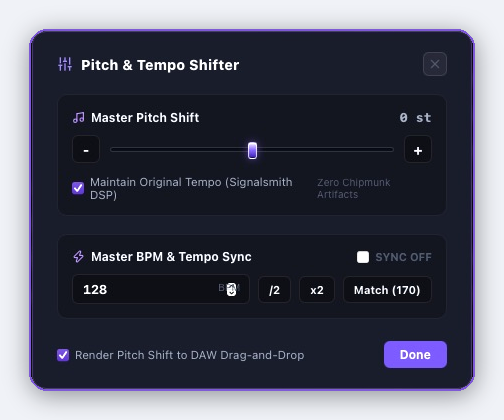
Use the PITCH minus/plus buttons or scroll over the pitch control to transpose by semitones. Shift-scroll makes finer cent adjustments; double-click resets the pitch. LOCK TEMPO preserves the original duration while pitch changes. Turn on SYNC to use the master BPM, then type a value or use the stepper; Shift-scroll changes BPM in smaller increments. In the streamlined toolbar, click the pitch/tempo summary to open the Shifter panel, which also offers half tempo, double tempo, and Match to the selected sample’s detected BPM.
These controls audition a transformed preview. DRAG PITCHED determines whether pitch and tempo changes are rendered into the file produced by a drag. Leave it off when you want the original audio; turn it on when you want the result you heard. Rendered output can require a moment to prepare before the drag begins.
Audition effects and keyboard playing
Open AUDITION FX to reveal Stereo Delay and Space Reverb. Each module has a power button. Delay offers a tempo-synced note division, feedback, and dry/wet mix. Reverb offers mix, decay, and brightness. These controls change the audition sound. BAKE FX determines whether enabled effects are included in a dragged render; leave it off for an unaffected file. In Settings, the same option appears as Bake Audition FX on drag.
The Audio toolbar’s MIDI button opens a keyboard for playing the selected audio sample at different pitches. It is distinct from the MIDI browser. Play with the onscreen keys, mapped computer keys, or enabled MIDI hardware. Shift the keyboard octave with its controls. Auto Root Key uses the selected sample’s detected root when available; Fixed C3 treats C3 as untransposed. Dynamic velocity responds to incoming pressure; fixed 100% gives a consistent level. Settings also stores the default root-note and velocity response.


Metadata, ratings, and tags
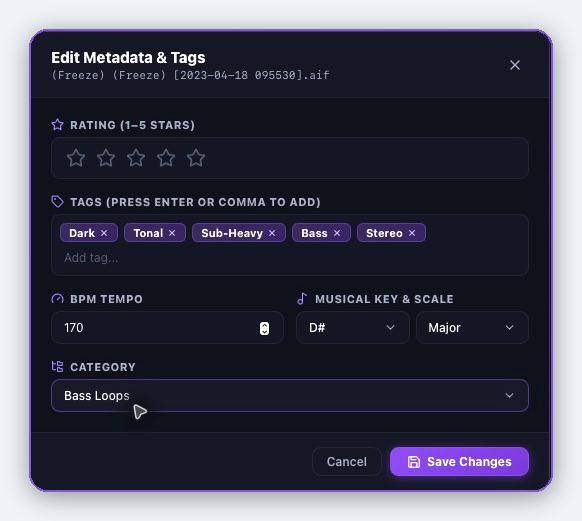
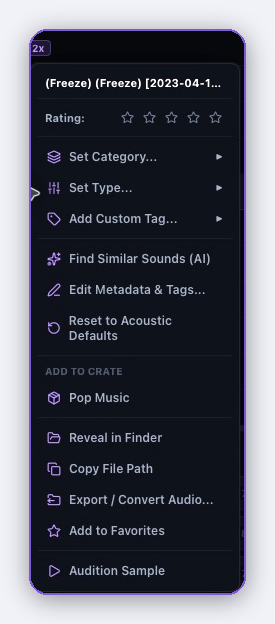
Right-click a sound and choose Edit Metadata & Tags to set its star rating, add or remove custom tags, edit BPM, choose a musical key and scale, or override the category. Enter or comma adds a tag. Save the changes to RACK’s index. Reset to Defaults returns overridden fields to RACK’s detected acoustic values. This is a nondestructive library edit; it is not an audio-file editor.
The right-click menu also supports category and type changes, batch custom tags, reset actions, crate assignment, Favorites, reveal in Finder, and copy file path. When multiple rows are selected, the menu applies relevant actions to the selection. Check the selection count before a batch action.
Duplicates and possible matches
HIDE DUPS shows one representative for each known duplicate group. Turn it off to see all copies. A duplicate badge beside a filename opens a list of copies, where you can audition a copy, reveal it in Finder, choose the primary representative, or unlink a mistaken match. The badge count refers to indexed copies, not extra files created by RACK.
In Settings > Audio > Duplicates & Maintenance, use Recalculate Audio Duplicates after changing libraries. Review Possible Duplicates presents likely acoustic matches separately from exact-copy groups. Choose Confirm Duplicate to group and hide the secondary item, or Not Duplicates to keep both visible. These actions change RACK’s organization; they do not remove a file from disk. MIDI’s HIDE DUPS is separate and matches identical MIDI contents.
Drag and batch export
Drag a row grip to Finder or a music app that accepts files. A multiple selection can be dragged together. A waveform selection has DRAG REGION for just that interval. If DRAG PITCHED or BAKE FX is enabled, RACK renders the selected transformations for the dragged result. Confirm the receiving app’s import behavior when working in a DAW.
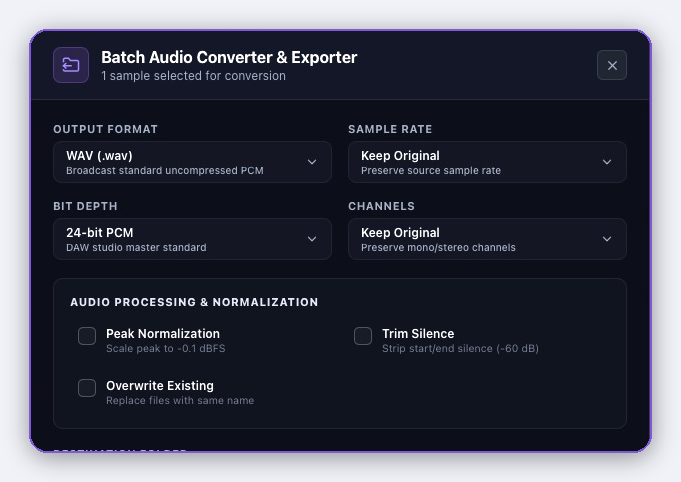
Choose Export / Convert Audio from a row’s menu, or the selected-count action bar for several sounds. The Batch Audio Converter supports WAV, AIFF, and FLAC; keeping or changing sample rate, bit depth, and mono/stereo channels; peak normalization; trimming leading and trailing silence; and optional overwrite of existing output. Choose a destination folder, run Convert & Export, and check the completed/failed count. Avoid Overwrite Existing unless replacing same-name destination files is intentional.
MIDI mode: build and browse a library
Mount MIDI folders and organize ideas
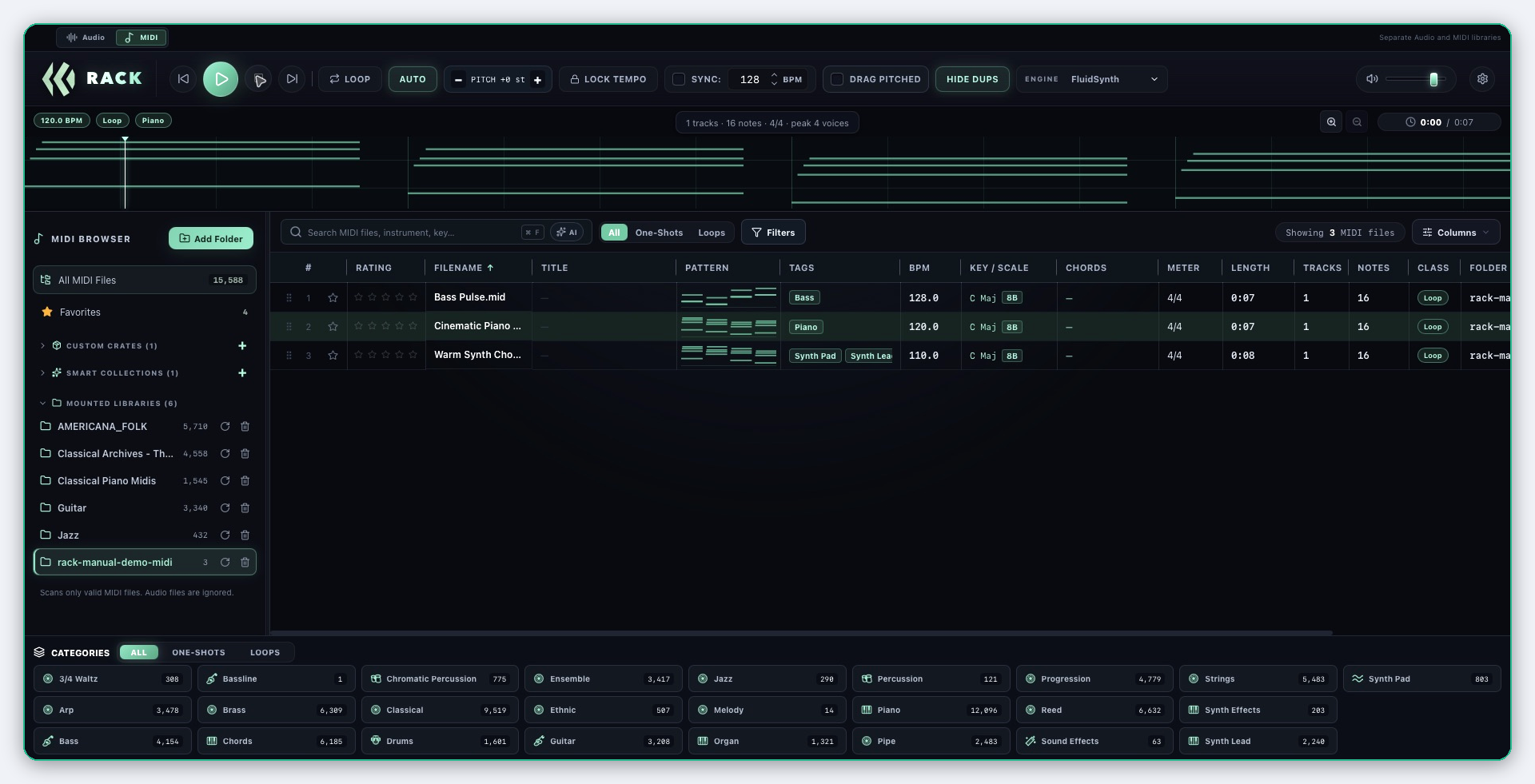
Choose MIDI in the mode switch, then click Add Folder in the MIDI Browser sidebar. RACK scans valid MIDI files and ignores audio files in the same folder. The mounted folder and its count appear below All MIDI Files, Favorites, Custom Crates, and Smart Collections. Choose a folder to restrict the table, use its circular-arrow button to rescan, or remove it from the MIDI index with the remove control. Removal leaves the files on disk.
MIDI Favorites contains starred MIDI rows. MIDI Custom Crates are manual groups, separate from Audio crates. Create a crate with the plus button, then use the row menu’s Add to Crate or drag a MIDI item into it. Within a crate, select rows and choose Remove selected from crate to unfile them. Rename or delete the crate using its sidebar controls; the MIDI files remain indexed.
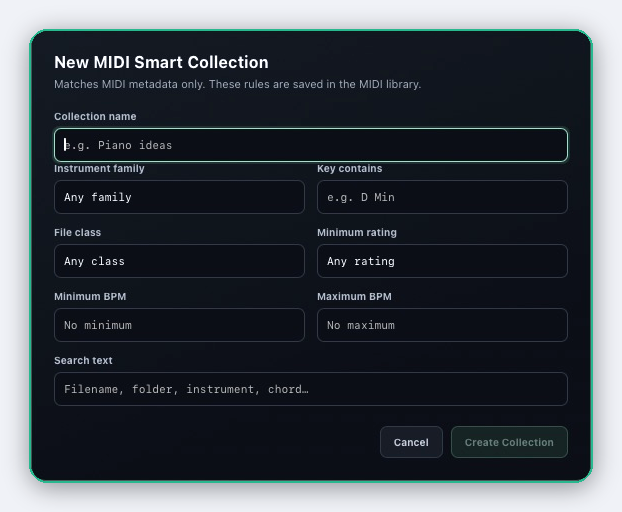
MIDI Smart Collections save metadata rules. A new collection can match instrument family, text within the key, loop/one-shot class, minimum rating, minimum and maximum BPM, and search text. Create one from the sidebar plus button; edit its rules from the collection control. The panel says “Matches MIDI metadata only”: this is an automatically refreshed view of the index, not a new set of files.
Read and customize the MIDI table
A MIDI row includes a drag grip, row audition button, Favorite star, and rating stars. Selecting a row loads its preview; AUTO determines whether selection also starts playback. Command-click adds or removes rows from a multiple selection. Right-click to act on the current row or selection.
Available columns are Rating, Filename, Title, Pattern, Tags, Note Range, BPM, Key/Scale, Chords, Meter, Length, Tracks, Notes, Class, Folder, and Size. The Pattern thumbnail summarizes note movement. Tags include detected instrument families and custom tags; clicking one filters to that exact tag and clicking it again clears the filter. The Key/Scale field can display musical key, Camelot code, or both. A dash means no value was detected. Click a heading to sort, drag a divider to resize, and use Columns to show, hide, reorder, or reset columns.
Note Range indicates the lowest and highest notes when shown. Tracks and Notes describe the MIDI data, while Length is its estimated playback duration. Chord labels are analysis aids; always listen or inspect the piano roll when the harmonic detail matters.

Search, filter, and find similar MIDI
Type a filename, instrument, key, chord, or other term in the MIDI search field. The AI switch enables RACK’s musical-intent and common-alias matching: a phrase such as “bright piano melody” can match terms beyond the literal filename. In this mode the current version uses indexed MIDI metadata and local matching rules. The active banner shows the query and a clear action. Search and filter results are constrained by the selected library, crate, or collection.
Choose All, One-Shots, or Loops for a quick class filter. Click an instrument or family tag in the table or bottom category matrix to filter by it. Open Filters for root key, major/minor scale, Camelot code, BPM bounds and presets, minimum rating, tag, instrument, or a musical-language query. Active chips above the table each have an x; Reset All clears the filters in the panel. If a search returns nothing, first clear the active chips and verify that a single library or collection is not still selected.
Right-click a row and choose Find Similar MIDI to rank other files by harmony, tempo, and register. The similarity banner identifies the source file and provides Clear Similarity. This helps discover related material; it does not alter either MIDI file.
Edit MIDI metadata and use row actions
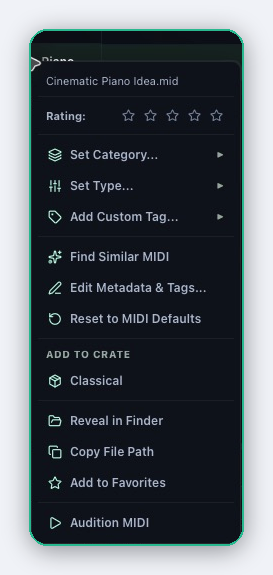
The row menu provides five-star rating, category and loop/one-shot type overrides, a custom-tag action, Find Similar MIDI, edit/reset metadata, crate assignment, reveal in Finder, copy path, Favorite, and audition. With several selected rows, relevant menu actions apply to the selection.
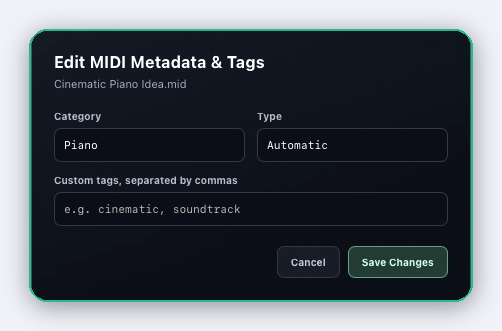
Choose Edit Metadata & Tags for one file to set a category, choose an automatic or overridden Loop/One-Shot type, and enter comma-separated custom tags. Save to update RACK’s MIDI index. Reset to MIDI Defaults removes overrides and returns to automatic metadata. Tags, ratings, Favorites, and crate membership are organizational metadata; the original MIDI performance stays intact.
MIDI mode: preview and move ideas into a project
Transport, tempo sync, and playback engine
The MIDI transport provides previous/play-pause/stop/next, LOOP, AUTO, semitone PITCH controls, LOCK TEMPO, SYNC and target BPM, DRAG PITCHED, HIDE DUPS, an ENGINE selector, volume/mute, and Settings. Stop preserves the playhead; click within the preview to seek while stopped. Play resumes there unless a selected range takes priority. LOOP repeats the file or highlighted range.
Use minus/plus to transpose the preview by semitones. Turn on SYNC and set a target BPM to hear a file at the project tempo. LOCK TEMPO holds the current target while selecting other files; switching it on also enables sync. DRAG PITCHED determines whether the transposition and synced tempo are applied to the MIDI produced by a drag. With it off, a whole-file drag uses the original MIDI performance.
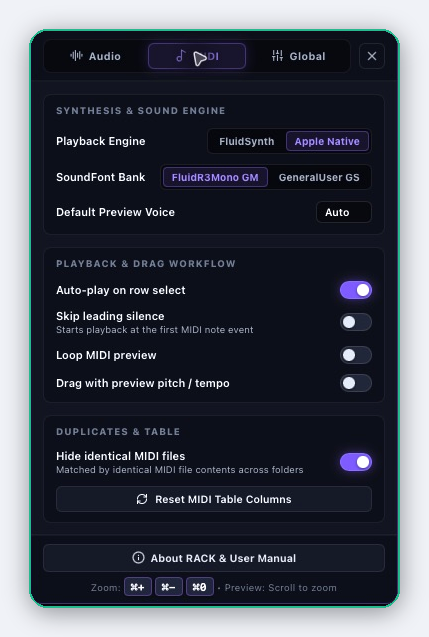
The ENGINE selector offers FluidSynth and, on a supported packaged macOS build, Apple Native. Settings also selects the SoundFont bank (FluidR3Mono GM or GeneralUser GS) and a default preview voice such as Auto, Piano, Drums, Synth, Strings, Bass, Guitar, Bell, or Flute. These settings determine how RACK renders its preview; a receiving DAW may play the same MIDI with a different instrument. If an engine or file will not play, try the other engine, verify the source file still exists, and rescan the folder.

Read, zoom, and select in the piano roll
Select a MIDI file to draw its note events across the preview band. The top edge shows detected BPM, class, and a leading instrument; another readout shows tracks, total notes, meter, and peak simultaneous voices when available. Vertical guides mark beats and bars. The moving playhead shows preview position.
Click in the piano roll to seek. Drag across it to create a time range. Play or Loop can audition the selected range. Scroll over the preview or use the magnifying buttons to zoom; Shift-scroll pans the zoomed view. The reset control returns to the full view and clears the selection. The selected range receives a DRAG REGION button, and dragging within the highlighted range can also start its export. Use a short selection when you want one phrase rather than the entire piece.


Drag MIDI out
Drag a row grip to Finder or a compatible DAW for the whole MIDI file. Use DRAG REGION to export the selected portion of the piano roll. When DRAG PITCHED is enabled, RACK applies the current preview transpose and synced target BPM to the dragged result. With it disabled, the source MIDI data is used for a whole-file drag. The receiving app chooses its own instrument unless you assign one there; RACK’s SoundFont and preview voice are audition settings.
When a DAW does not accept a drop, try dropping into Finder first and importing the resulting file through the DAW’s normal file command. This distinguishes a destination-specific drop issue from a missing RACK source file.
Shared settings and reference
Settings map
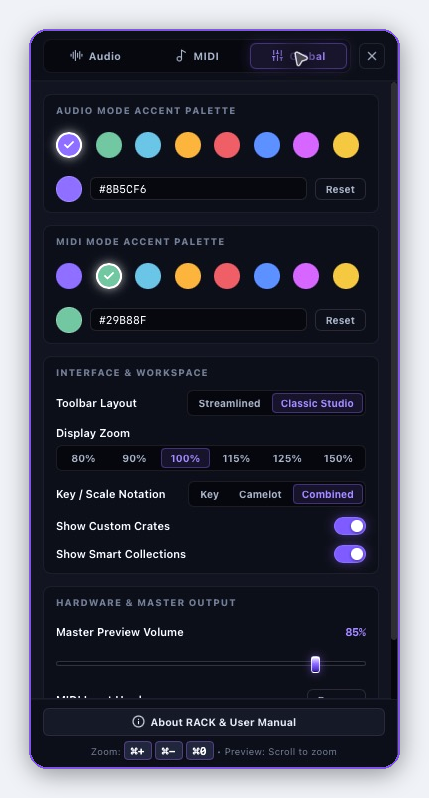
Open the gear and choose Audio, MIDI, or Global within the settings panel. The tab names describe where a preference applies; Audio and MIDI playback options are stored separately.
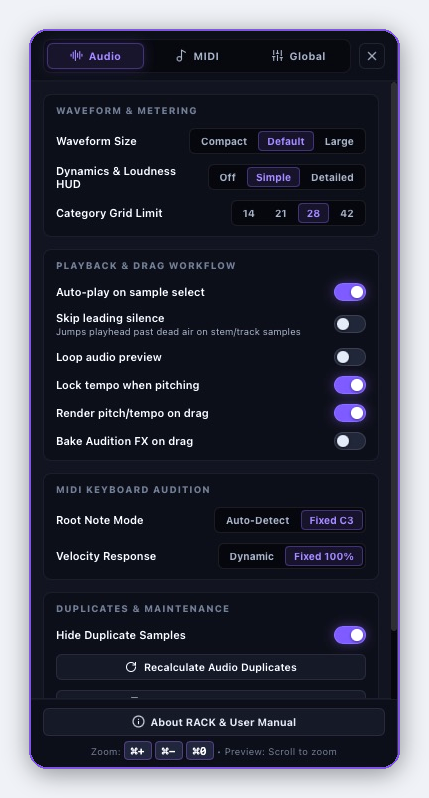
Audio settings: waveform size (Compact, Default, Large); Dynamics & Loudness HUD (Off, Simple, Detailed); category-grid limit; auto-play; skip leading silence; loop; lock tempo when pitching; render pitch/tempo on drag; bake effects on drag; keyboard root and velocity modes; duplicate hiding, recalculation and review; reset table columns.
MIDI settings: FluidSynth or Apple Native engine when available; SoundFont bank; default voice; auto-play; skip to first note; loop; drag with preview pitch/tempo; hide identical MIDI files; reset table columns.
Global settings: independent Audio and MIDI accent colors (presets or custom hex); Streamlined or Classic Studio toolbar; display zoom; Key, Camelot, or Combined notation; visibility of Custom Crates and Smart Collections; master preview volume; and connected MIDI input hardware, including rescan and enable controls. The About RACK & User Manual action opens the About panel and its PDF/HTML manual links.
Keyboard and pointer reference
Shortcuts apply when focus is not inside a text field or modal that uses the same key. The macOS Command key is written as ⌘.
- Both modes: ⌘F focuses search; Space plays or pauses the selected item. Escape closes many popovers and clears applicable selection states.
- Audio: Up/Down moves to the previous/next visible sample; F toggles the selected Favorite; L toggles Loop; M opens the Audio audition keyboard; 1–5 sets a star rating and 0 clears it. ⌘+ and ⌘- change display zoom; ⌘0 resets it.
- Audio waveform: click to seek; drag to select; drag a selected span to move it; drag an edge to resize; scroll to zoom; use its reset button to clear zoom and selection.
- MIDI piano roll: click to seek; drag to select; scroll to zoom; Shift-scroll to pan. MIDI’s Space and ⌘F shortcuts are available in the browser.
- Tables: click a column heading to sort, drag the edge to resize, and use Columns to manage visibility and order. Command-click supports multiple selection.
Troubleshooting
No files appear after adding a folder. Check that the correct mode is selected and the folder contains supported files. Clear search, filters, class/category choices, and crate/collection selection. Rescan the mounted folder. For a changed Audio library that still appears stale, Shift-click rescan for full analysis.
A listed file will not preview. Verify the source volume and folder are connected. An indexed entry can remain visible when its original path has moved or disappeared. Reconnect the volume or remove and re-add the folder at its new location. For MIDI, also try the other available engine and verify the chosen SoundFont bank.
Search returns too few or no results. Clear active chips and the search field, choose All Samples or All MIDI Files, and turn off class/category restrictions. Audio AI search depends on the first-run support files; ordinary text and filters remain useful when the model is unavailable. MIDI’s AI-labeled mode matches musical terms in indexed metadata and aliases.
There are fewer rows than files on disk. Check HIDE DUPS and the selected library, crate, or smart collection. RACK can suppress duplicate copies in the visible table. The original files are not deleted by hiding them.
The sound or MIDI plays differently after import. For Audio, check whether DRAG PITCHED and BAKE FX were enabled at drag time. For MIDI, the destination app chooses its own instrument, and DRAG PITCHED controls whether RACK applies preview transpose/tempo to the export.
Drag into a DAW fails. Confirm the source file exists, then drag to Finder as a diagnostic. If Finder receives a file, use the DAW’s normal import command or test a different destination track. Verify that the DAW accepts that file type and that a region export has a meaningful selected span.
Glossary
- Audition: Listen to a file or selection before moving it into a project.
- BPM: Beats per minute, a tempo measure. A detected BPM may differ from the intended project tempo.
- Camelot code: A compact key label used for harmonic mixing, such as 8B for C major.
- Class: RACK’s broad One-Shot or Loop grouping.
- Crate: A manually curated list of Audio sounds or MIDI files inside RACK.
- Duplicate group: Indexed files judged to be copies or confirmed matches; one can be the primary representative.
- LUFS: A loudness measure designed to reflect perceived program level. RACK’s HUD reports measured integrated and, in Detailed mode, short-term loudness.
- MIDI: Performance instructions for notes and timing. A MIDI file does not contain an instrument recording.
- One-shot: A short event intended to be triggered once, such as a hit.
- Piano roll: The MIDI preview that draws note positions against time and pitch.
- Region: A selected time span in the Audio waveform or MIDI piano roll.
- RMS: An average signal-energy measure displayed in the Audio loudness HUD.
- Smart Collection: A saved set of rules that automatically shows matching indexed items.
- SoundFont: An instrument-sample bank used by RACK to render MIDI previews.
- Transpose: Move audio or MIDI pitch up or down by musical intervals.
- True peak: An estimate of the maximum level between digital samples, shown in Detailed Audio HUD mode.
- Waveform: A drawing of an audio signal’s level over time.